Can't get what you are looking for, or need some help?
Can't get what you are looking for,
or need some help?
Talk to us
Call me back
Email us
business@safaricom.co.ke
Call us
+254 722 002 222
Company
Discover
Terms of Service
Customer Support
+254 722 002 222
business.support@safaricom.co.ke
business@safaricom.co.ke
© 2026 Safaricom Business. All Rights Reserved.
Company
Discover
Terms of Service
Customer Support
+254 722 002 222
business.support@safaricom.co.ke
business@safaricom.co.ke
© 2026 Safaricom Business. All Rights Reserved.
Back to top
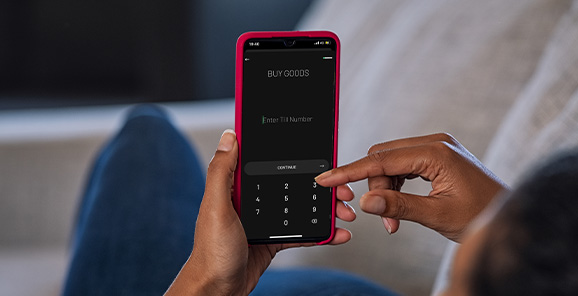
Make cashless payments secure, convenient whether it is your M-PESA business till, supplier tills, mobile numbers, utilities, anytime, anywhere.

Why Choose M-Pesa Business Till
Discover a seamless way to manage daily operations, reduce cash handling, and simplify payments across your business ecosystem. It’s perfect for retail businesses that collect customer payments frequently, including supermarkets, restaurants, salons, pharmacies, hardware stores, boutiques, fuel stations, and more.
Benefits
One Stop Account
One stop account for collecting and making payments directly from the till.
Frequently asked questions (FAQs)
The M-PESA Business till is an enhancement of the existing Buy Goods Till that enables business owners to collect payments on the till and use the money collected to make other transactions directly from their till such as: • Pay to a mobile number. • Pay to another Buy Goods Till • Pay to a utility (Paybill) till • Withdraw funds: • To owners nominated number • At M-PESA agent • To bank • Sell Airtime and earn commission.
Log in to the portal - Lipa Na M-PESA Application Portal • Click on “Apply Now’ menu. • Select the product to apply for. • Select the business type to proceed with the application. To know the status of a pending application: • Click on “My Applications” tab. • Enter your phone number to receive a unique OTP (PIN) sent via SMS. A list of all applications made by you shall be displayed. Only the applicant can view the status of the application. Please note that application for M-PESA till and other services are offered free of charge, whether this is done online, from Safaricom shops or through any of our sales agents.
Pending: The application request has been submitted successfully to the Lipa Na M-PESA team for processing. • Rejected: The application request has been rejected and the reason(s) is clearly indicated. • Approved: All documentation provided have been reviewed successfully and the business till is being processed. • Complete: The M-PESA Business till number is active, details sent to the applicant and payments can now be received on the Paybill. Where the application is approved or rejected, the applicant shall receive an SMS to notify of the same.
Head office store: This is the number used by a business owner to operate multiple stores under one organization. • Store number: The number used by the business owner to operate the till. • Till number: The number displayed for customers to make payments to your business. • Nominated number: M-PESA registered number that is authorized to withdraw funds from the store. This is usually the business owner’s M-PESA number, or another as may be proposed. The till notification SIM card cannot be a nominated number.
There are two channels: • USSD *234# then select M-PESA Business Till menu. • M-PESA Business App available for Android and iOS smartphones.
You will be required to first activate /opt into your till to perform transactions. There are two options to do this. Via *234*2# from your nominated number • Dial *234*2# from the Nominated Number • Enter the Head Office / Store Number • Accept Terms and Conditions to receive the Operator ID and Start PIN • Dial *234*2# again and Set New PIN Via M-PESA Business APP • Download and install the App on your Nominated Number smartphone.For Android; https://bit.ly/lnm-appFor IOS; https://bit.ly/LNM-app • For Android; https://bit.ly/lnm-app • For IOS; https://bit.ly/LNM-app • Select Sign In • Select Continue under Terms and Conditions • Enter the Till Number or Store Number to sign in. • Select Activate under the Operator ID screen. • Enter the start key received on SMS from M-PESA • Enter new PIN. • Enter ID or passport number to validate. Once successful, you will receive an SMS from M-PESA that your Operator ID is successfully activated.
To download a sticker with your till number already embedded on the sticker. Access the M-PESA self-onboarding portal. Select MY APPLICATIONS Download the sticker with your store number and name printed on it under your completed applications.
As the business owner, you can perform the following transactions: • Pay to a mobile number. • Pay to another Buy Goods Till • Pay to a utility (Paybill) till • Withdraw funds:To owner's nominated numberAt M-PESA agentTo bank • To owner's nominated number • At M-PESA agent • To bank • Sell Airtime and earn commission. • Check statements. • Create and Manage Assistants. • Change PIN. Please refer to attached user guide on how to perform this task.
There are two channels in which you can perform transactions: Via the nominated number • Dial *234# from the Nominated Number • Then select M-PESA Business Till • Then enter your Head Office / Store Number • Select the transaction you wish to perform. Via M-PESA Business App. • Click on M-PESA Business App to access the App guide.
You will be able to transact up to KSh. 250,000 per transaction. The maximum you can transact (Money sent from the till) in a day is KSh. 500,000
Yes. Where a customer has paid and requests for reversal through our customer care office, we shall contact you on 0722000000 or from email addresses MPESABusReversals@Safaricom.co.ke or M-PESABusiness@Safaricom.co.ke to notify you and seek your permission to reverse. We also encourage you to proceed and reverse any money that you may receive, and feel does not belong to you as soon as you receive it.
Please contact us through the customer care channels below if the SIM card is registered under Safaricom for assistance. If the SIM card is registered with your personal ID/Passport number, • Dial *456# from any other SIM card • Select Get PUK • Enter the Mobile Number whose PUK you want. • Enter your ID Number You will receive an SMS with the PUK to unlock the SIM card.
For further enquiries, support, and training requests, you may reach us on: Email: MPESABusiness@safaricom.co.ke Calling 100 (Prepaid) or 200 (Postpaid) Visit Safaricom Retail shops countrywide. Twitter: @Safaricom_Care or @SafaricomPLC Facebook: Safaricom PLC Safaricom website: https://www.safaricom.co.ke/
This refers to the SIM card that receives transaction SMS/notifications. You will be required to replace your till SIM card via the following options: • Visit the nearest shop/Care desk to get a SIM card, where you will be required to provide your store/till number. Self-service- Purchase a replacement line from an M-PESA agent or Safaricom shop near you at KSh 50 then Dial *234# from the Nominated Number • Through Safaricom support- Purchase a replacement SIM card from an M-PESA agent or Safaricom shop near you at KSh 50. Write an email to M-PESAbusiness@safaricom.co.ke, and provide the till number or store number as well as the serial number on the replacement SIM card you purchased. Once successful, you will receive a message confirming that the SIM replacement/activation was completed successfully. Kindly insert your new SIM into a handset to receive Payment notifications. Note: You cannot replace another person’s till
Create Assistant The Primary Operator will create the other users i.e., Merchant assistants. Assistants will only be able to transact on the business till and not their personal numbers. Click: https://www.safaricom.co.ke/media-center-landing/frequently-asked-questions/m-pesa-business-till
This is a Do-It-Yourself automated process where merchant can access their daily, monthly, and yearly statement on demand. You need to opt into the service to receive your statements. Note that you can also access your statements on the M-PESA Business App. Click https://www.safaricom.co.ke/media-center-landing/frequently-asked-questions/m-pesa-business-till
Others also viewed